TROUBLESHOOTING NOTE
SPF ~all or -all: which one should your record end with?
Updated
Your SPF record ends in a tilde (~all), and a report has flagged it. That alone isn't a reason to switch to a dash (-all). Both endings are used by big providers. Before you change that one character, let's work out what it does and check that you won't catch your own mail in the process.
SPF ends in ~all: is that wrong?
The short answer: no. A record ending in ~all is valid, and Google tells Google Workspace customers to use it. A record ending in -all is also valid, and Microsoft tells Microsoft 365 customers to use that. The two big providers recommend different endings, which is why the internet argues about it.
SPF is a list, published in your domain's DNS, of the servers allowed to send email for your domain. DNS is the public directory of settings for a domain. The last item in the list, the all part, says what to do with any server that is not on the list. The symbol in front of it is the instruction.
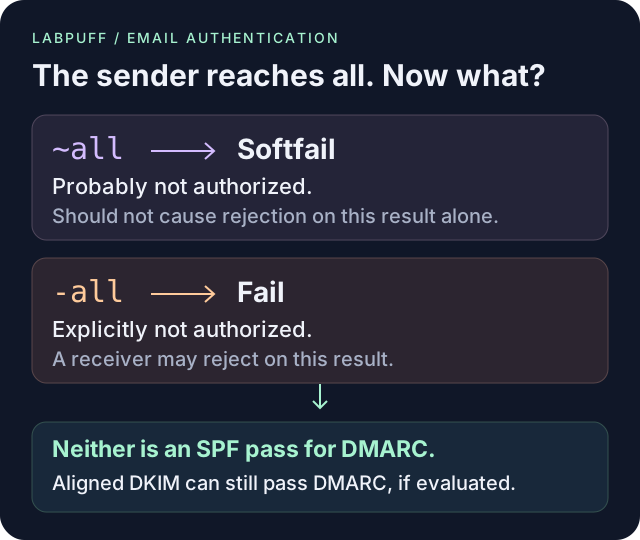
A dash (-all) means fail. The standard calls it an explicit statement that the sender is not authorized, and it lets the receiving mail server reject the message. A tilde (~all) means softfail. The standard calls it a weak statement that the sender is probably not authorized, and it says receivers should not reject a message on that result alone, though they may look at it more closely. A question mark (?all) means neutral, which is treated the same as having no opinion. A plus (+all) means everyone is allowed, which defeats the purpose of SPF, so if you ever see it, treat it as a problem.
Order matters here. Once SPF reaches all, it has a match and stops trying later mechanisms. So an include tucked after ~all won't authorize your newsletter service. That's a rule about mechanisms, the parts that match senders; other settings in the record, called modifiers, have their own rules.
How to check your SPF ending with the LabPuff SPF Checker
Step 1: Open the SPF Checker, type your domain into the box labeled Domain or website URL, and press Run check. Use the part of your email address after the @, such as example.com.
Step 2: Read the Policy row, then the Fallback row. LabPuff shows Information for ~all and Pass for -all. A +all is Fail; ?all or a missing all mechanism is Warning. Don't let the green Pass talk you into a change on its own: it's a label for the record, not proof that your mail will arrive.
Step 3: Look for more than one SPF record at the same DNS name. If you publish SPF, publish one record there. Multiple SPF records cause a permerror. Different subdomains can each have their own record.
Know what the checker does not do. It reads the record as published. It does not follow the includes inside it, does not count the ten-lookup limit, and cannot tell you whether a real message from your newsletter tool will pass. A clean result here means the record is readable, not that your mail is authenticated.
Should I use ~all or -all?
We'd start with your mail provider's instructions, then make a list of the other services that send for you. Include your website's contact form as well as your main inbox. Changing one character is easy; checking that list is the part we'd spend time on.
If you have no DMARC record at all, -all is the stronger statement. Check every legitimate sending service before switching: a sender you forgot can fail SPF and be rejected by a provider that acts on that result. Don't change ~all just to clear a warning before you've checked who sends for your domain.
If you use DMARC, neither softfail nor fail counts as an SPF pass. The message can still pass DMARC through DKIM, as long as that signature passes and its domain lines up with your From address. There's a catch: a provider may reject on SPF before it gets that far. Microsoft recommends -all for Microsoft 365; Google recommends ~all for Workspace. Follow your provider's instructions and test the mail you actually send.
If your domain never sends email, such as a parked name, use v=spf1 -all as the whole record. It says no server is allowed to send as that domain. Be certain first. If you are not sure whether a domain sends anything, treat it as a sending domain.
Whichever you pick, SPF is one of three checks. DKIM and DMARC carry as much weight, and none of them guarantees inbox delivery.
How to change ~all to -all without blocking your own email
Before you touch anything, copy your whole current SPF record into a note. That copy is your undo. Also write down where you edit DNS, which is usually your domain registrar or whoever hosts your DNS.
Step 1: List every service that sends email as your domain. Common ones are your main mailbox provider, your website's contact form, a newsletter tool, invoicing or booking software, and a help desk. Each one should have a domain authentication page in its help center that shows what to add to SPF.
Step 2: Check which envelope sender domain each service uses. It's the address used behind the scenes for bounces, and it may differ from the From address you see. Make sure that domain's SPF record allows the service's sending servers. Check DKIM too, but don't assume a good DKIM signature will rescue a message rejected on SPF before DMARC is checked. If you have DMARC reports, look for senders you didn't expect.
Step 3: Change only the last symbol. Replace ~all with -all and leave every other part of the record alone. Warning: from this point, mail from any sender not on the list can be rejected by receivers that honor the dash, and delivery errors may go to the sending service’s bounce address instead of your inbox. Undo: change it back to ~all and save. DNS caching means the undo is not instant, so make the change early in a work week and not on a Friday evening.
Step 4: Send a test from each service to a Gmail address and to an address at another provider, and confirm each arrives.
Forwarding creates another problem: the forwarder’s IP may not be authorized by the original envelope domain. Broadcom documents this for Email Security.cloud forwarding into Microsoft 365. A surviving, aligned DKIM signature can help DMARC pass even when SPF does not. Check the actual receiver’s results before treating a forwarding softfail as a reason to edit your own SPF record.
If you go the other direction and are switching from -all to ~all because legitimate mail is being rejected, the same steps apply in reverse. Fix the missing sender in the list as well, or the problem comes back when you tighten again.
How to confirm the SPF change worked
Step 1: Wait for DNS to refresh. How long depends on the record's TTL, short for time to live, which is how long other servers may keep the old answer. Many DNS hosts show it next to the record. Then run the SPF Checker again and confirm the ending changed.
Step 2: If the checker still shows the old ending, you may have edited the wrong DNS host. Run the LabPuff DNS Lookup on your domain and read the NS records, which name the servers that actually answer for your domain. Edit the record there.
Step 3: Open a test message in Gmail, choose Show original from the three-dot menu, and look for SPF: PASS near the top. Check the DMARC line there too. Use the LabPuff DMARC Checker to see whether your domain has a policy.
SPF checks the sending server against the hidden envelope sender address, not the From address people see. A pass in the message header is the real evidence. The checker only shows what you published.
When paying for help makes sense
Start with your provider’s documentation. With one mailbox provider and one or two other services, you can follow each provider's own instructions and read a few messages' headers yourself.
Paid monitoring becomes more useful when several teams or services send for the same domain. A DMARC monitoring service collects the reports your domain receives, reads the compressed files for you, and lists who is sending as your domain and whether each sender passes. Use that evidence alongside your sender inventory and tests before tightening SPF. If you have one mailbox provider and one contact form, you can probably skip it.
Common questions about SPF ~all and -all
Does ~all send my email to spam? Not by itself. It only describes how to treat servers that are not on your list. Mail from servers that are on your list is not affected.
Is -all more secure than ~all? On paper, it is the firmer statement. In practice, once DMARC is in place the gap is smaller, and a wrong -all can block your own mail.
Should I use ?all? Microsoft says it is for testing only and does not recommend it in production. Treat it as a temporary setting.
What is the difference between ~all and a DMARC policy? SPF describes which servers may send. DMARC says what receivers should do when messages fail, and checks that the domain matches the From address.
Can I put two SPF records on one domain? No. Combine them into one record, or SPF returns an error.
Reference and scope
IETF RFC 7208: SPF all mechanism and results
- Google Workspace: SPF setup and ~all recommendation
- Microsoft 365: SPF setup and -all recommendation
- Broadcom: SPF softfail after forwarding
- Google: open a message’s full headers
This guide explains a diagnostic workflow. Provider-specific configuration and actual messages or browser behavior require separate verification. The linked tools report bounded observations, not a complete audit.